Best CS2 Viewmodel Commands
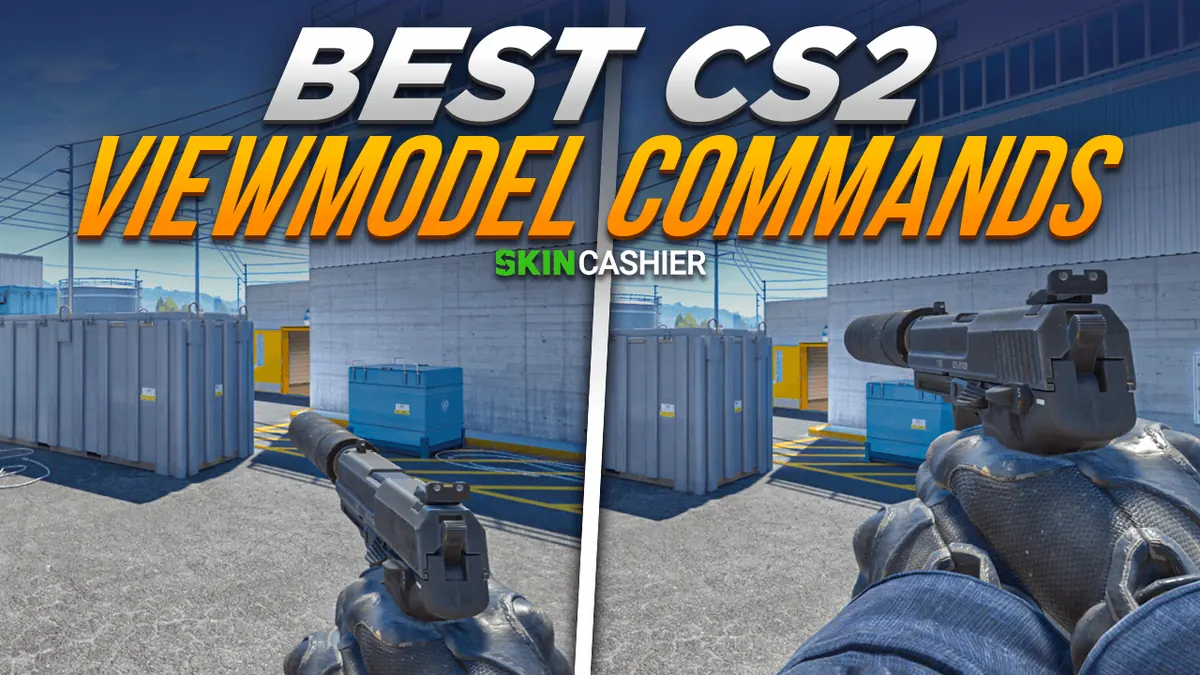
Table of contents
Counter Strike 2 is one of the most popular online shooters ever released, with millions of players competing against each other online. One of the best features of the game is how much it allows every individual player to modify their client, allowing each gamer to personalize their game to their own liking. Players can experiment with new settings to further customize their gameplay experience.
By using CS2 console commands, gamers can change virtually any aspect of the game. You can not only buy and sell CS:GO skins to other players to create your own, personalized loadout, but you can also create the perfect settings, made just for you.
You can change any kind of settings just by using a console command, and knowing these advanced techniques to customize your settings is just what you might need to elevate your CS2 gameplay. Today, we’ll be looking at the best viewmodel settings in CS2 available today!
What Are CS2 Viewmodel Settings?
In short, your CS2 viewmodel is the pair of hands holding the gun in front of your face in first person mode. While most gamers play with the default viewmodel settings, you can in fact place the player’s weapon and character model practically anywhere on the screen.
Adjusting the field of view (FOV) can significantly impact your visibility and tactical advantages during gameplay.
While changing the position of your view model has no actual impact on the gameplay itself (your new viewmodel settings will only be visible to you), different settings for your camera’s field of view can make it easier to aim with your weapons.
Enabling Developer Console
To access the developer console in Counter-Strike 2, follow these steps:
- Go to the game’s settings menu by clicking the cog icon in the top left corner of the screen.
- Click on the “Game” tab.
- Scroll down to the “Enable Developer Console” option and set it to “Yes”.
- Press the tilde (~) key to open the console.
Enabling the developer console is crucial for customizing your viewmodel settings in CS2. With the console enabled, you can use various console commands to tweak your viewmodel to your liking, as welll as modify other CS2 settings.
How to change Viewmodel Settings in CS2?
Advanced viewmodel customization involves using console commands to fine-tune your viewmodel settings. Here are some advanced commands to try:
viewmodel_offset_xAdjusts the horizontal position of your viewmodel. Use values between -2.5 and 2.5 to find the perfect spot for your weapon on the screen.viewmodel_offset_yAdjusts the vertical position of your viewmodel. Values between -2 and 2 will help you set how high or low your weapon appears.viewmodel_offset_zAdjusts the depth position of your viewmodel. This command adjusts how close or far your weapon is from the screen, with values ranging from -2 to 2.viewmodel_fovAdjusts the field of view of your viewmodel. A value between 54 and 68 will change how much of the game world you can see.To use these commands, simply type them into the console and press enter. If you ever want to revert your viewmodel settings to the default, you can use the following command: viewmodel_reset.
Also, if you want to save some time on entering the viewmodel commands every time, make sure to check out our guide on how to use CS2 autoexec files.
Viewmodel Settings for Pro Players
Best CS2 players often use custom viewmodel settings to gain a competitive edge. Here are some viewmodel settings used by pro players:
viewmodel_offset_x 2.5This setting adjusts the horizontal position of the viewmodel to provide a more immersive experience.viewmodel_offset_y -2This setting adjusts the vertical position of the viewmodel to provide a more comfortable viewing experience.viewmodel_offset_z -2This setting adjusts the depth position of the viewmodel to provide a more realistic experience.viewmodel_fov 54This setting adjusts the field of view to provide a more focused experience.These settings are just examples and may not work for everyone. It’s important to experiment with different viewmodel settings to find what works best for you.
Troubleshooting Viewmodel Issues
If you’re experiencing issues with your viewmodel, such as it being stuck or not responding to commands, try the following troubleshooting steps:
- Restart the game: Sometimes, simply restarting the game can resolve viewmodel issues.
- Check your console commands: Make sure you’re using the correct console commands to adjust your viewmodel settings.
- Reset your viewmodel settings: Use the following command to reset your viewmodel settings to the default: viewmodel_reset.
- Check for conflicts with other settings: If you’re using other console commands or settings, try disabling them to see if they’re causing conflicts with your viewmodel settings.
By following these steps, you can troubleshoot and resolve most viewmodel issues, ensuring a smooth and enjoyable gaming experience.
In Conclusion
As you can see, there are many different ways in which you can make your CS2 gameplay to your liking. If you enjoyed this article, make sure to check out the rest of our blog, where we regularly post more tips, tricks, and CS2 news!!
More in CS2 guides
Best Trade Ups CS2: Contract Guide 2025
Comprehensive explanation of CS2 Trade Ups. Check out our blog and learn how to make profitable trade ups in the world of CS2!

Best CS2 music kits
Want to add some character to your game? Check out everything you need to know about CS2 music kits and how to get them!

How to Improve FPS In CS2?
FPS (frames per seconds) is one of the most important factors in any dynamic game these days! Find out how to effectively increase FPS in CS2!